Keyboard shortcuts speed up your daily workflow. You stop opening the screenshot app. You just press a key, and seconds later you are sending your colleague a much-needed screenshot.
Here are the six most common shortcuts. They’re the defaults — remap any of them in Settings → Shortcuts.
The six that do a day’s work
Capture a region: ⌘⇧2 on macOS or Ctrl+Shift+3 on Windows. The workhorse. Drag, release, done. Everything in this post assumes you’ve already made this one muscle memory.
Capture a window: ⌘⇧W on macOS or Ctrl+Shift+W on Windows. One press, hover, click. The whole app, title bar and all, desktop excluded. This is 80% of bug reports and documentation.
Capture the full screen: ⌘⇧1 on macOS or Ctrl+Shift+1 on Windows. For when it’s everything: the layout, the other windows, the state of the whole desk.
Start frozen: ⌘⇧X on macOS or Ctrl+Shift+X on Windows. Opens the region selector with the screen already holding still. For moving targets: a cursor mid-drag, a menu that won’t sit, an animation in progress. (Spot the need late? Press Space mid-selection to freeze the screen, and again to let it go.)
Scrolling capture: ⌘⇧J on macOS or Ctrl+Shift+J on Windows. Select the part that scrolls, scroll like a human, and hypershot stitches the frames into one tall image. Long threads, long pages, long everything: one file instead of a staircase of seven.
OCR: ⌘⇧O on macOS or Ctrl+Shift+O on Windows. Drag over the text, release, the text is on your clipboard. On-device — macOS’s Vision framework, Windows’s OCR APIs. No round trip to a server, no paste-into-a-web-OCR-tool detour.
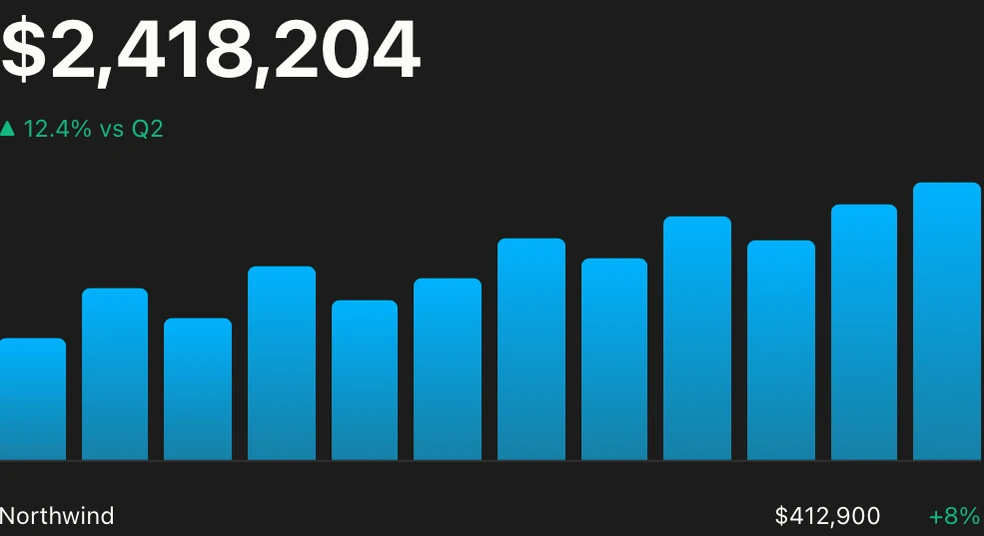
Net revenue
$2,418,204
▲ 12.4% vs Q2
Northwind$412,900+8%
Acme Corp$388,120+14%
Globex$301,440−2%
Numbers for the board deck?
Need the Q3 chart, the new one
Net revenue
$2,418,204
▲ 12.4% vs Q2
Northwind$412,900+8%
Acme Corp$388,120+14%
Globex$301,440−2%
The one you’ll use more than you think
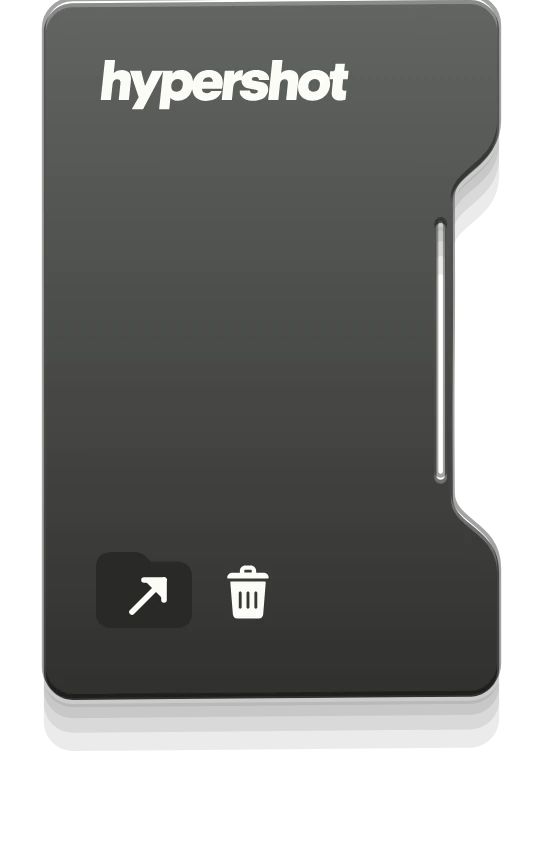
History: ⌘⇧L on macOS or Ctrl+Shift+H on Windows. That’s the key that opens the capture preview folder — every recent capture, fanned out, ready to copy, drag, save, or reopen. The moment you’ve ever thought “where did that last screenshot go?” is the moment you learn this one.
The small print that isn’t small
Every one of these is a default. The point of a default is to be right enough to start with — if any of the six fights your fingers, change it in Settings → Shortcuts. And the delayed trio (⌘⇧7, ⌘⇧8 and ⌘⇧9 on macOS, the same numbers with Ctrl+Shift on Windows, for timed region, screen, and window) sits there for menus and tooltips that vanish before your hand arrives.