To screenshot a window on a Mac without its drop shadow, press ⌘⇧4, then Space (the pointer turns into a camera), then hold ⌥ while you click the window. To turn the shadow off for every window screenshot, run defaults write com.apple.screencapture disable-shadow -bool true in Terminal, followed by killall SystemUIServer. In hypershot, turn off Window shadows in Settings → Captures, and window captures (⌘⇧W) come out without it.
Why the shadow is there
When macOS captures a window, it captures it the way it looks on screen: rounded corners, and the soft shadow that floats it above the desktop. That shadow becomes a wide, partly transparent margin around the image. On a white page it looks nice. Pasted into a slide with a coloured background, a tightly cropped doc, or a bug ticket, it reads as a grey smudge and makes the window look smaller than it is.
The built-in way
For one screenshot:
- Open the window you want and make sure nothing important is covering it.
- Press ⌘⇧4, then press and release Space. The pointer becomes a camera and the window under it is highlighted.
- Hold ⌥ and click the window.
The file lands where your screenshots usually go (the desktop, unless you’ve changed it in the ⌘⇧5 Options menu). Press Esc at any point to cancel.
For every screenshot, from now on:
-
Open Terminal (Applications → Utilities).
-
Run:
defaults write com.apple.screencapture disable-shadow -bool truekillall SystemUIServerThe menu bar flickers as SystemUIServer restarts. If shadows still appear, log out and back in.
To bring shadows back:
defaults delete com.apple.screencapture disable-shadowkillall SystemUIServerThe limits. Both work well, and the command has been around for years. Two small catches: it’s a hidden preference with no switch in System Settings, so it’s easy to forget you set it; and the shadow goes all-or-nothing. A white window on a white page has nothing left to mark its edge, and the built-in tools offer no way to swap Apple’s shadow for a lighter one of your own.
With hypershot
hypershot’s window capture works the same way as the built-in one, and the shadow is a setting rather than a held key or a Terminal command.
- Open Settings → Captures and turn off Window shadows. It’s on by default, and it’s a Mac-only setting, since the shadow is a macOS thing.
- Press ⌘⇧W, hover the window, and click.
You get the whole window, title bar included, without the shadow and without anything behind it. It can capture a window that’s partly behind another one, too, so you don’t have to rearrange your desktop first. More on window capture in How to capture a single window.
$ pnpm deploy --prod
✓ built in 4.1s
✓ uploaded 212 files
→ live at hypernuclear.com
$
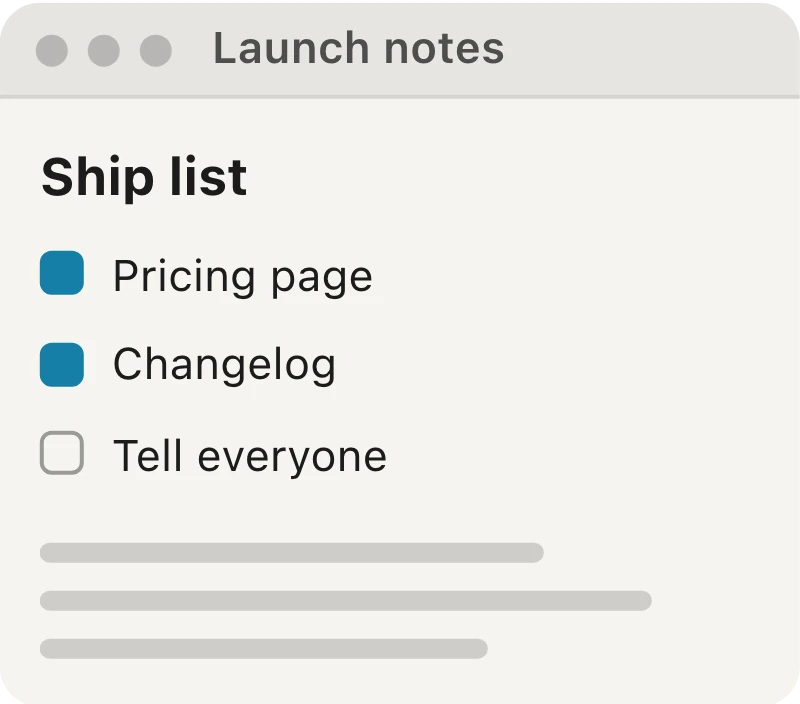
Want a shadow, but your own? That’s where hypershot goes further than the system tools. Open the capture in the editor, press B for the Artboard tool and turn on a Background (a solid colour, a gradient, or a blurred copy of the capture). Shadow controls appear next to it: Opacity (35% by default), Blur, and an angle dial for direction and distance. You can round the corners too, and the Chrome option adds a macOS- or Windows-style title bar above the screenshot. The result is a window on a background you chose, with a shadow you tuned yourself.
Which to use
- Now and then: ⌘⇧4, Space, ⌥-click. Nothing to install or remember beyond the extra key.
- Every time, system-wide: the
defaults writecommand. - Every time, plus control over background and shadow afterwards: hypershot with Window shadows off.
Why is there a transparent border around my window screenshot?
That’s the shadow’s space. The area around the window is transparent, and the shadow fades out across it. Take the screenshot again with ⌥ held, or use one of the permanent options above.