Press ⌘⇧5 to open the Screenshot toolbar, click Options, choose 5 Seconds or 10 Seconds under Timer, then click Capture. macOS counts down and takes the shot on its own, which gives you time to open a menu or hover a tooltip first. If you need a length other than 5 or 10 seconds, Terminal’s screencapture -T takes any number of seconds, and hypershot’s delayed capture lets you set anywhere from 1 to 30 seconds and start it from one shortcut.
The built-in way
The timer lives in the Screenshot toolbar (the same tools as the Screenshot app in Applications → Utilities).
- Press ⌘⇧5. The toolbar appears at the bottom of the screen.
- Pick what to capture: Capture Entire Screen, Capture Selected Window, or Capture Selected Portion. For a portion, drag the selection box where you want it.
- Click Options and, under Timer, choose 5 Seconds or 10 Seconds.
- Click Capture. A countdown appears; use those seconds to open the menu, right-click, or hover the thing you want in the shot.
The same Options menu has Show Mouse Pointer, which you’ll want on if the shot is about where to click.
It’s a good tool, and it ships with every Mac. The limits are worth knowing:
- Two lengths only. 5 or 10 seconds. If the thing you’re staging takes 15, you’re out of luck.
- Only from the toolbar. ⌘⇧3 and ⌘⇧4 still fire immediately; the timer only applies to captures started from ⌘⇧5.
- It remembers. The Timer setting sticks, so the next ⌘⇧5 capture will count down too until you set it back to None.
From Terminal
screencapture is the command-line version of the same system tool, and its -T flag takes any number of seconds:
screencapture -T 15 ~/Desktop/later.pngThat waits 15 seconds and captures the whole screen to your Desktop. Add -C to include the cursor, or -c to send the image to the clipboard instead of a file. It’s handy in a script; for everyday use, typing a command every time you want a screenshot gets old fast.
With hypershot
hypershot has three delayed capture modes, each with its own shortcut:
- Delayed region, ⌘⇧7. Drag the area first, then the countdown starts and the capture fires on that area.
- Delayed window, ⌘⇧9. Click the window first, then the countdown starts.
- Delayed screen, ⌘⇧8. The countdown starts right away, then it captures the full screen.
You can also start them from the Delayed items in the menu bar menu. A countdown overlay shows the seconds left, and Escape cancels.
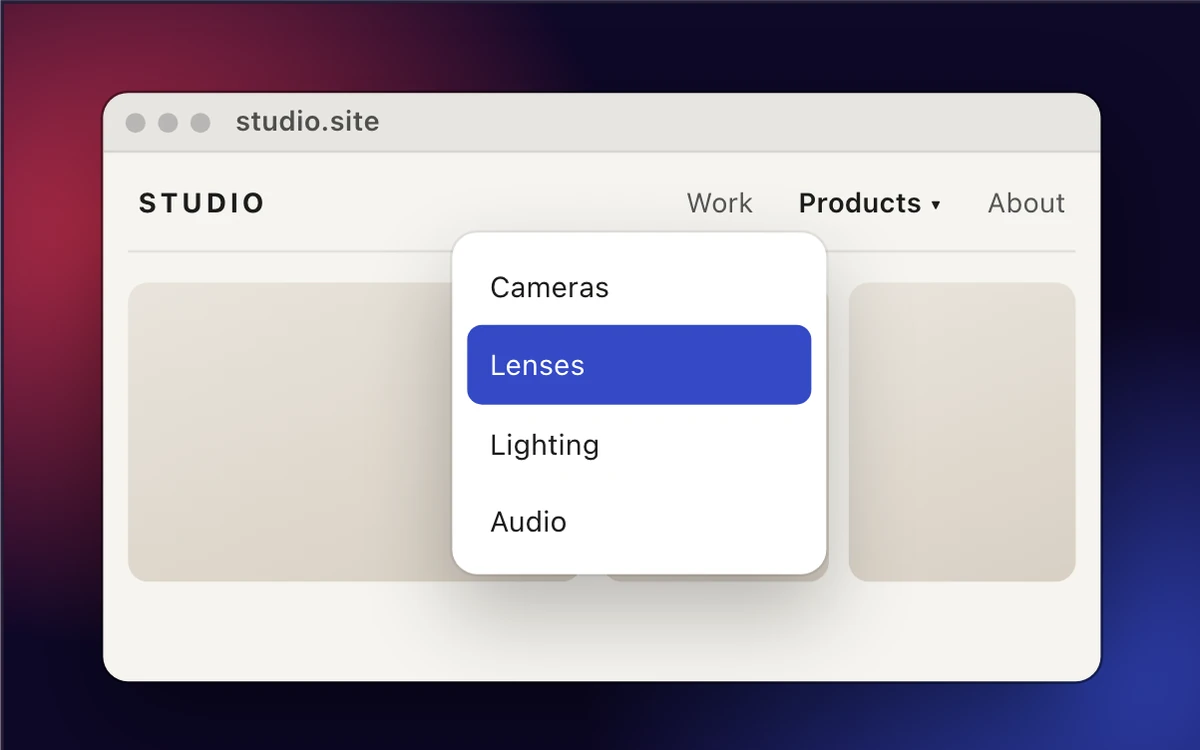
- Cameras
- Lenses
- Lighting
- Audio
What’s different from the built-in timer:
- Any length from 1 to 30 seconds. Set it once in Settings → Captures → Capture delay (5 by default). A one-second delay is enough to get your hand off the keyboard; thirty is enough to set up something fiddly.
- You aim before the countdown, not after. With a delayed region or window, the selection is already made, so when the countdown ends your hands are free and the menu stays open.
- Your normal shortcuts keep firing instantly. The delay belongs to its own shortcuts, so there’s no setting to forget to turn off.
- Cursor is your call. Show cursor in timed and fullscreen captures in Settings → Captures (off by default).
The capture then lands like any other hypershot capture, ready to annotate, crop or redact before you send it. The full details are in the delayed capture docs.
When a timer is the wrong tool
Timers are for things you can open and leave open. For a tooltip that vanishes the moment you move, or a menu that only stays up while the mouse is held, a countdown can still miss. hypershot has two other ways in: freeze the screen while you select, or hold the mouse button to record a short burst and pick the frame afterwards. There’s more on all three in how to capture a menu, tooltip, or anything that disappears.
Does the Mac screenshot timer work for screen recordings?
Yes. The Timer option in ⌘⇧5 also delays the start of a screen recording. hypershot’s delay is for still captures for now; its screen recording is coming soon.
How do I set a screenshot timer on Windows?
Snipping Tool has a Delay menu. See how to take a screenshot with a timer on Windows.