Open the Snipping Tool app (search for it from Start), click the Delay button and choose 3, 5 or 10 seconds, then click New. Windows counts down; open your menu or hover your tooltip in the meantime, and when the screen dims, drag around what you want. The Win+Shift+S shortcut has no delay, so the timer only works when you start from the app. If you want other lengths or a shortcut that starts the countdown directly, hypershot’s delayed capture goes from 1 to 30 seconds.
The built-in way
On Windows 11:
- Open Snipping Tool from the Start menu.
- Make sure it’s in screenshot mode (the camera icon, not video).
- Pick a Snipping Mode (Rectangle, Window, Full screen or Freeform).
- Click the Delay dropdown (the clock) and choose 3 seconds, 5 seconds or 10 seconds.
- Click New. During the countdown, set up the screen: open the menu, right-click, hover.
- When the screen dims, the moment is frozen. Drag around the area you want (or click the window, in Window mode).
The snip opens in Snipping Tool, where you can mark it up, copy it, or save it.
On Windows 10, the classic Snipping Tool works the same way, with a Delay menu that goes up to 5 seconds.
It’s a sensible design: the screen is frozen when the countdown ends, so you can take your time with the selection. The limits:
- Three lengths. 3, 5 or 10 seconds on Windows 11.
- App first, every time. Win+Shift+S, and PrtScn (which opens the same snipping overlay by default on recent versions of Windows 11), capture immediately. To get a delay you open the app, set the delay, then click New.
- You aim after the countdown. That’s fine for most things, but it means one more step of mouse work after the moment you were waiting for.
With hypershot
hypershot has three delayed modes, each on its own shortcut:
- Delayed region, Ctrl+Shift+7. Drag the area first; then the countdown runs and the capture fires on that area.
- Delayed window, Ctrl+Shift+9. Click the window first, then the countdown runs.
- Delayed screen, Ctrl+Shift+8. The countdown starts immediately, then it captures the full screen.
They’re also in the tray menu, as the Delayed items. A countdown overlay shows the seconds left; press Escape to cancel.
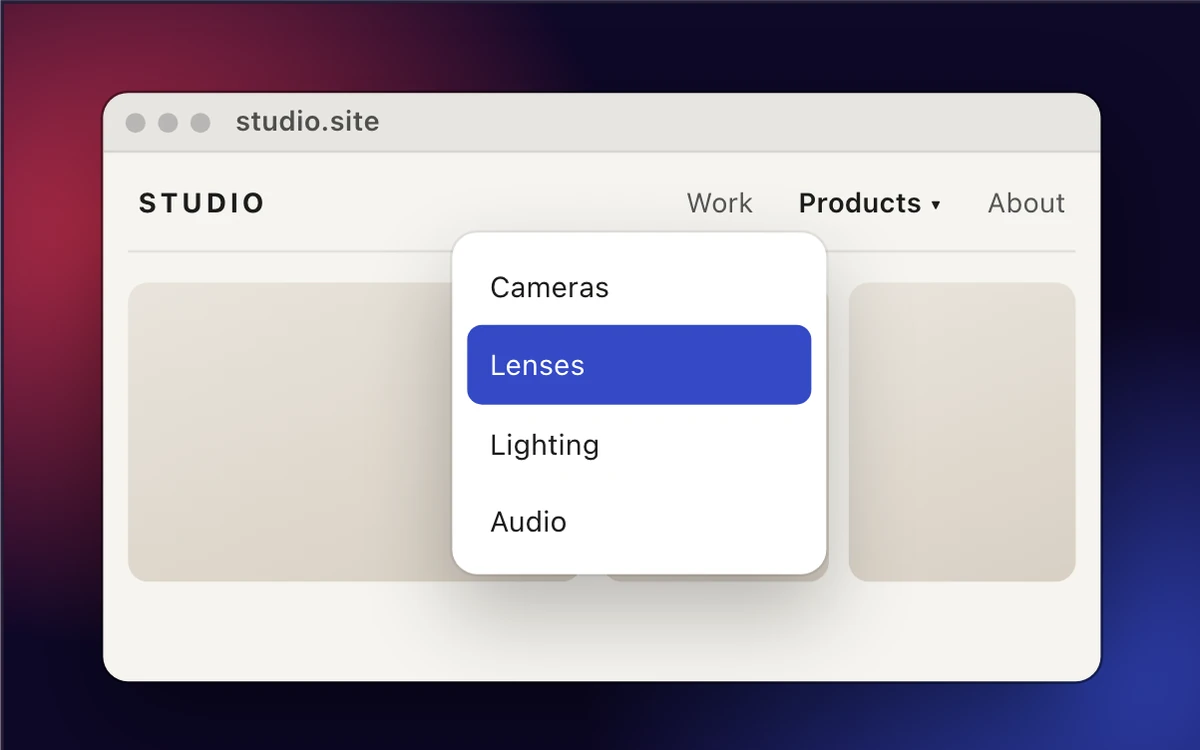
- Cameras
- Lenses
- Lighting
- Audio
What that changes:
- Pick any length from 1 to 30 seconds in Settings → Captures → Capture delay (5 by default).
- One keypress to start. No app to open and no menu to set; the delayed modes have their own shortcuts, and your regular capture shortcuts stay instant.
- Aim first, then wait. With region and window modes the selection is made before the countdown, so when it fires you don’t have to touch anything. Useful when the menu you opened closes the moment you click elsewhere.
- Cursor optional. Turn on Show cursor in timed and fullscreen captures in Settings → Captures if the cursor is part of the point (it’s off by default).
The capture opens like any hypershot capture, ready to annotate or redact. hypershot runs on Windows 10 and later, and the delayed capture docs have the details.
Which to use
If you take a delayed screenshot twice a year, Snipping Tool’s Delay menu is fine and already on your PC. If you write docs, file bug reports, or capture menus as part of the job, a dedicated shortcut and a delay you can tune pays for itself quickly.
When a timer isn’t enough
Some UI only exists while you’re holding the mouse, or disappears when the pointer moves a pixel. A countdown can still miss those. hypershot can freeze the screen while you select, or keep a short burst of frames while you hold the mouse button so you can pick the right one afterwards. More in how to capture a menu, tooltip, or anything that disappears.
Can I add a delay to Win+Shift+S?
No. The shortcut always captures immediately. The delay is only in the Snipping Tool app.
How do I do this on a Mac?
Press ⌘⇧5 and use Options → Timer. See how to take a screenshot with a timer on Mac.