You took a screenshot. Where is it now?
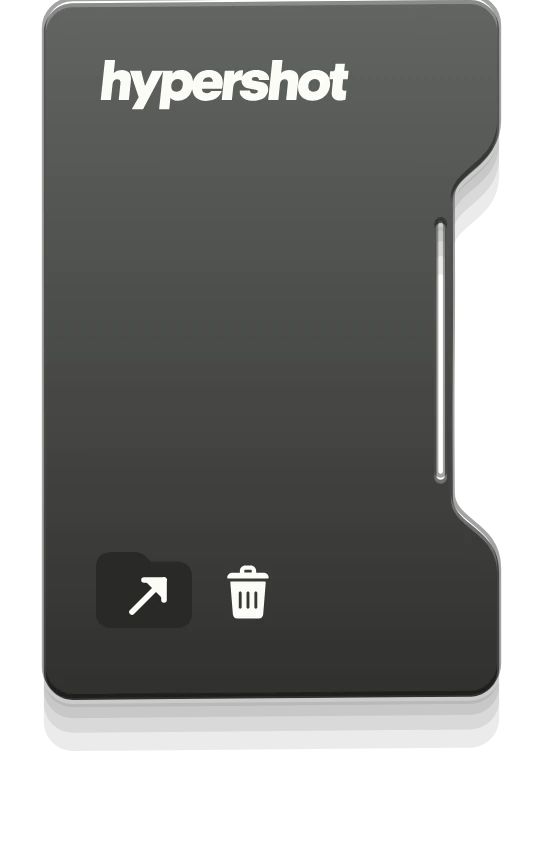
In most tools the answer is “somewhere, if you saved it, in the place you configured four months ago.” In hypershot the answer is visible: every capture lands in a preview folder that warps into the corner of your screen, stacked as thumbnail cards.
The folder
The moment you capture — area, window, or screen — the image flies into a small folder icon and becomes a card. Your most recent captures are the ones on top, newest first. Captures with extra frames (the burst ones, when something was moving) wear a frame-count badge so you can spot at a glance which ones have a timeline to scrub.
Hover near the folder and the cards slide out. CLick them and they fan upward in an arc, all of them visible at once.
What you can do to a card
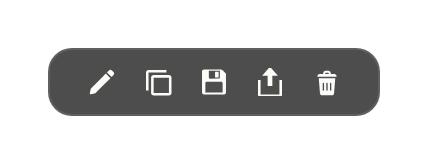
Each card has quick actions, so you rarely need to open the full editor:
- Edit — opens the capture in the editor, annotations and all.
- Copy — puts the image on your clipboard for a paste into Slack, a doc, an email.
- Save As… — writes it to disk in PNG, JPEG, or WebP.
- Drag — grab the card and drop the image straight into another app. It’s a native OS drag, so it behaves like any file you’d drag from Finder or Explorer.
- Reveal in Finder (or Explorer) — shows you the actual file on disk, for the moments you need the path.
- Dismiss — removes it from the folder. Done with it, gone from the way.
- Delete — moves the capture to the Trash, one card at a time or the whole folder at once.
> tidy the welcome screen copy
● Updated 3 strings in Welcome.tsx
”I still can’t find it on disk”
You don’t have to save anything to keep it: every capture is already saved as an editable .hypercapture file, in Pictures/hypershot unless you’ve picked another folder (Settings → General → Save Directory). That’s the file Reveal in Finder takes you to, and it’s what the preview folder is showing you. Reopen it any time and your annotations are still editable. When you need a plain image instead, that’s what Save As…, Copy and Drag are for.
Recents
Applications
Desktop
Documents
Downloads
Pictures
LocationsMacintosh HD
Home
Gallery
Desktop
Downloads
Documents
Pictures
This PC
Make it fit your desk
- The folder’s corner is yours to choose: bottom left (the default) or bottom right, in Settings → Appearance → Preview capture position. In the right-hand corner the layout mirrors, so the cards slide out toward the middle of the screen.
- It tracks your monitors: a capture from the right-hand display shows up on that display, and when you’re idle it follows your cursor across screens.
- It stays on top of your windows but passes clicks through when you’re not near it, so it’s present without being in the way.
You took it. It’s in the corner. Go get it.